

Change Language
Learn how to switch the interface language on the platform by accessing the language settings, selecting your preferred language, and confirming the change.
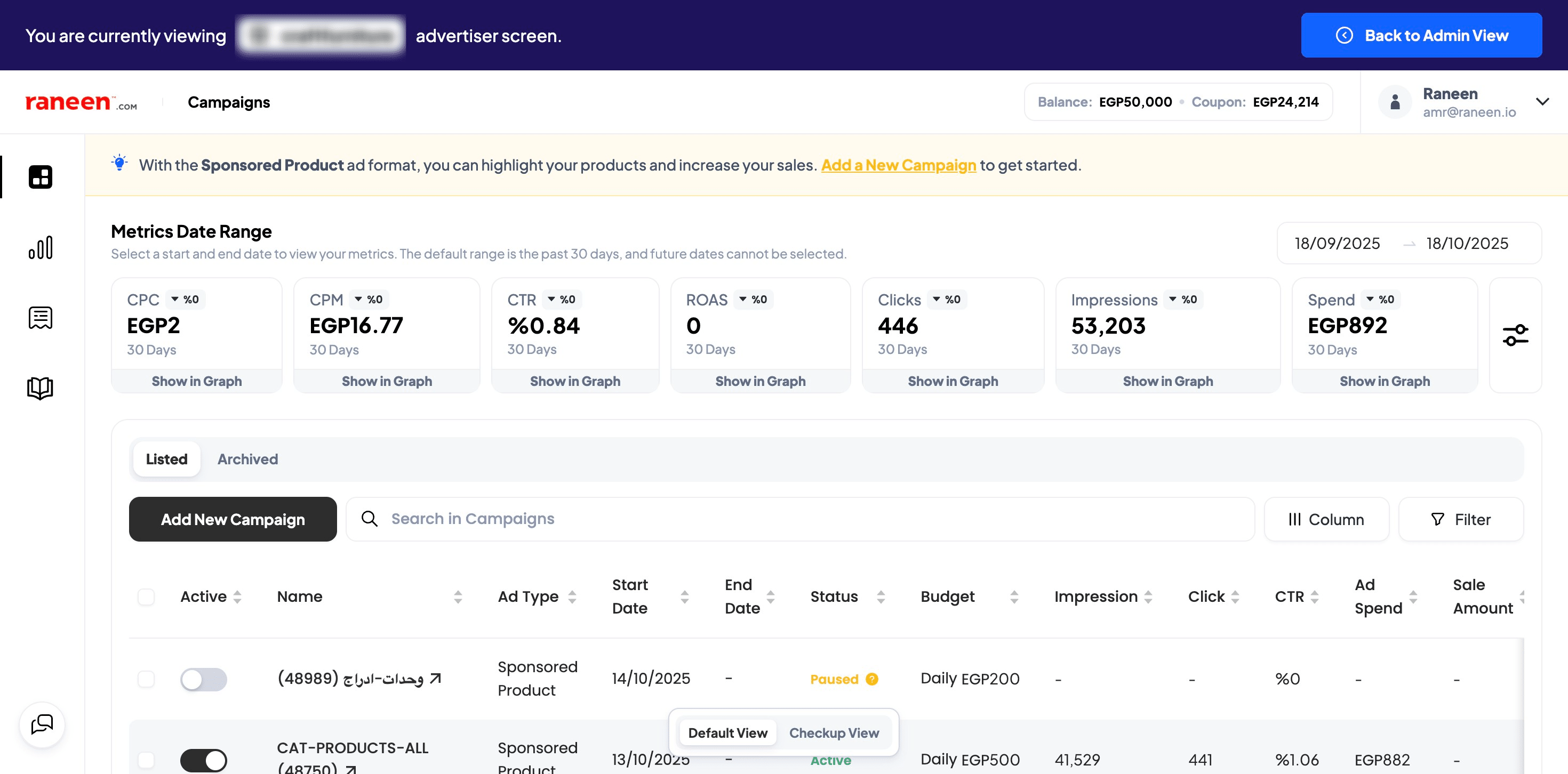
Change Language
Frequently Asked Questions
- What does the step "Click here!" refer to?
It refers to clicking the link or button on the https://one.raneen.com/ page that leads to the language change option. After that you proceed to "Click Change Language" as the next step.
- Why are there both "Check the language you want" and "Select the language you want" steps?
"Check the language you want" means marking or checking your desired language in the list (e.g., by clicking a checkbox or radio option). "Select the language you want" is the subsequent action to confirm that choice before you proceed to "Confirm language change." Follow both steps in order.
- How do I finish the language change process?
After checking and selecting your desired language, follow the step "Confirm language change." Once confirmation completes, the guide indicates the process is finished with "Done 🚀."
- What should I do if the language doesn't change after confirming?
If you don't reach the final "Done 🚀" step or the language doesn't appear changed, repeat the sequence from "Click here!" through "Confirm language change" to ensure the selection and confirmation steps were completed.